Appearance is a personal preference. Nothing in this lesson changes the account or what colleagues see — it applies to your device only.
Dark mode
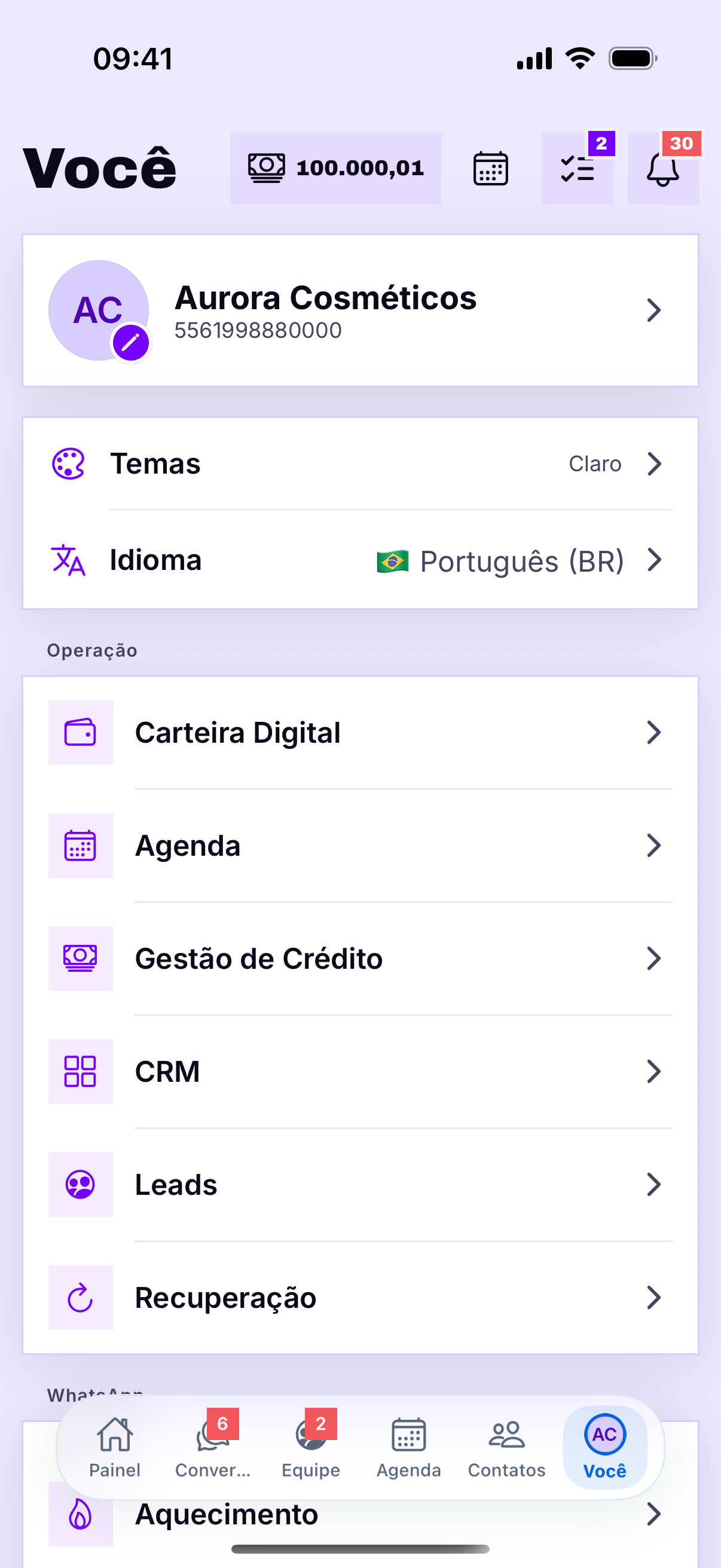
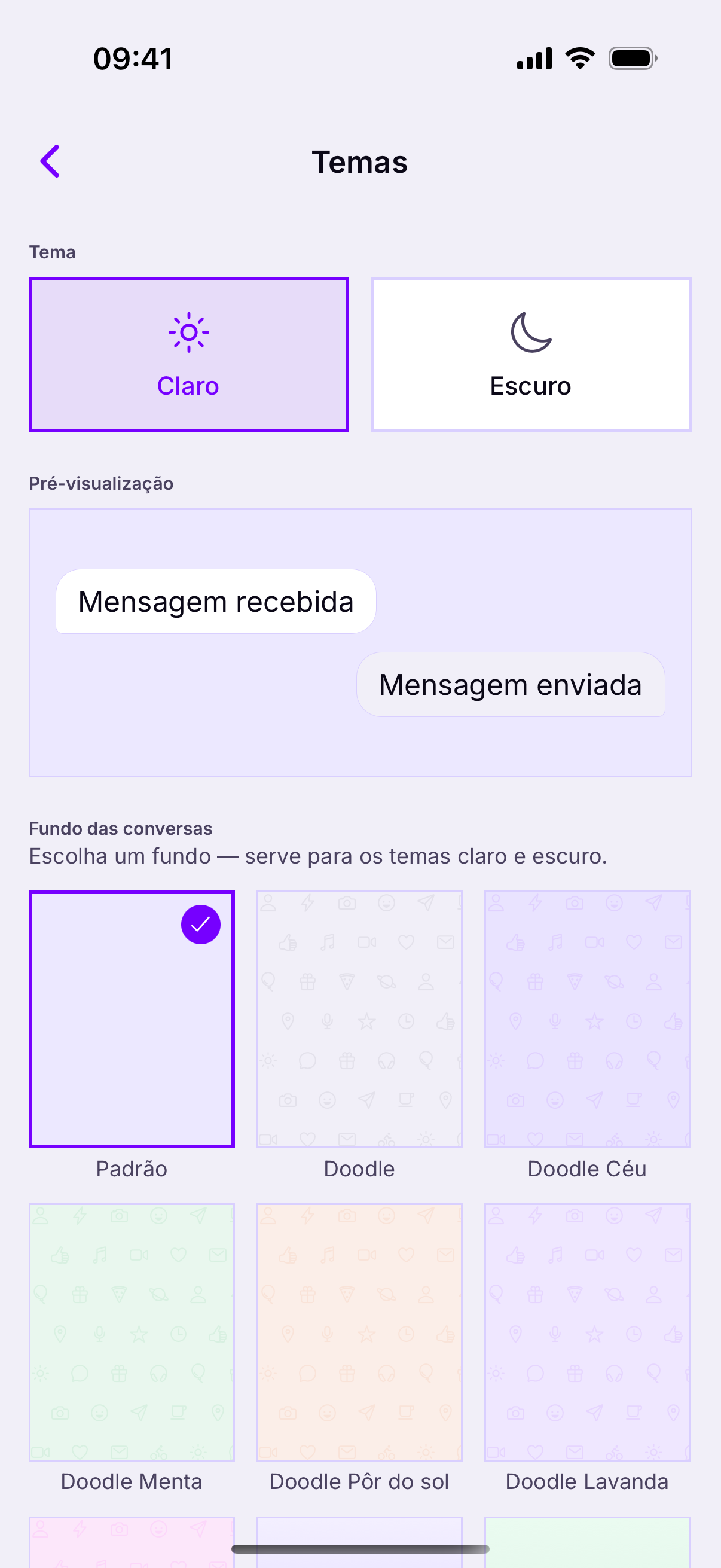
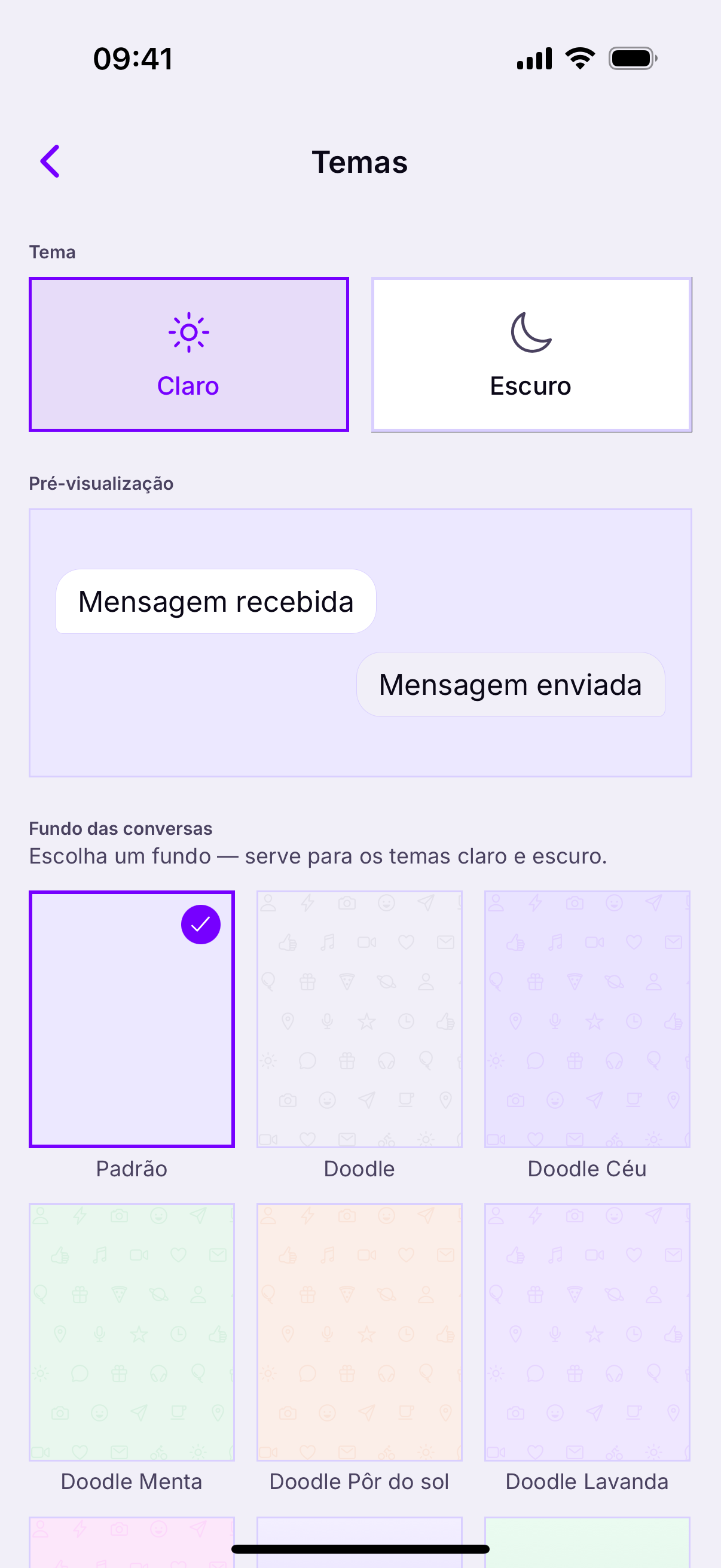
Under You, the Dark mode switch changes the theme of the whole app.
- Light — better in strong light, outdoors or near a window.
- Dark — better at night and for anyone working the small hours.
- The choice is saved on the device: closing the app does not lose it.
O escuro economiza bateriaEm telas OLED — todo iPhone recente e a maioria dos Android bons — o preto simplesmente não acende. Num plantão longo, a diferença aparece no fim do dia.
On OLED screens — every recent iPhone and most good Androids — black simply does not light up. Over a long shift, the difference shows by the end of the day.
Language
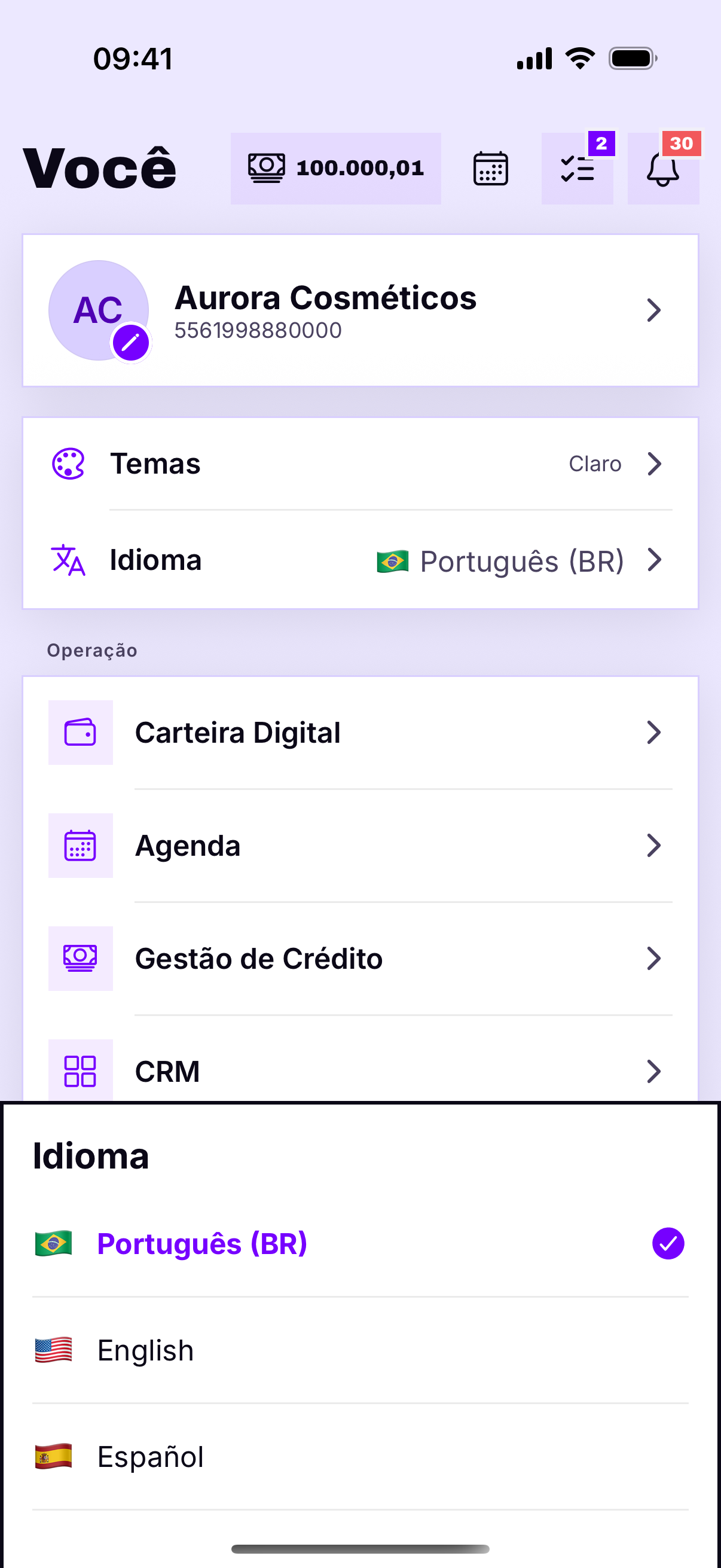
O idioma do app não é o do clienteThe app speaks Portuguese, English and Spanish. The switch is immediate and applies to you alone — the same panel stays in Portuguese for the rest of the team.
Switching here changes the interface. Messages that go out to the customer stay in the language you wrote them in, and the website widget has its own setting.
Color themes
Besides light and dark, the app offers color variations. It is decoration — but it helps anyone running two different accounts know at a glance which one they are in.
Text size
Se a tela ficar apertadaThe app respects the system font size. Anyone who enlarges the text in Settings › Display & Brightness (iPhone) or Settings › Display (Android) sees Heyoo follow along.