Skip to content
Comece aqui

Two-step verification (2FA)

Turning the second factor on from start to finish: QR code, app code and recovery codes.

3 min de vídeo 10 imagens Painel do administrador
Aula gravada na plataforma real. O cursor, as legendas e o destaque existem só no vídeo.

Two-step verification — 2FA — combines two proofs to sign in: something you know (the password) and something you have (your phone). Even if the password leaks, without the six-digit code nobody gets into the account.
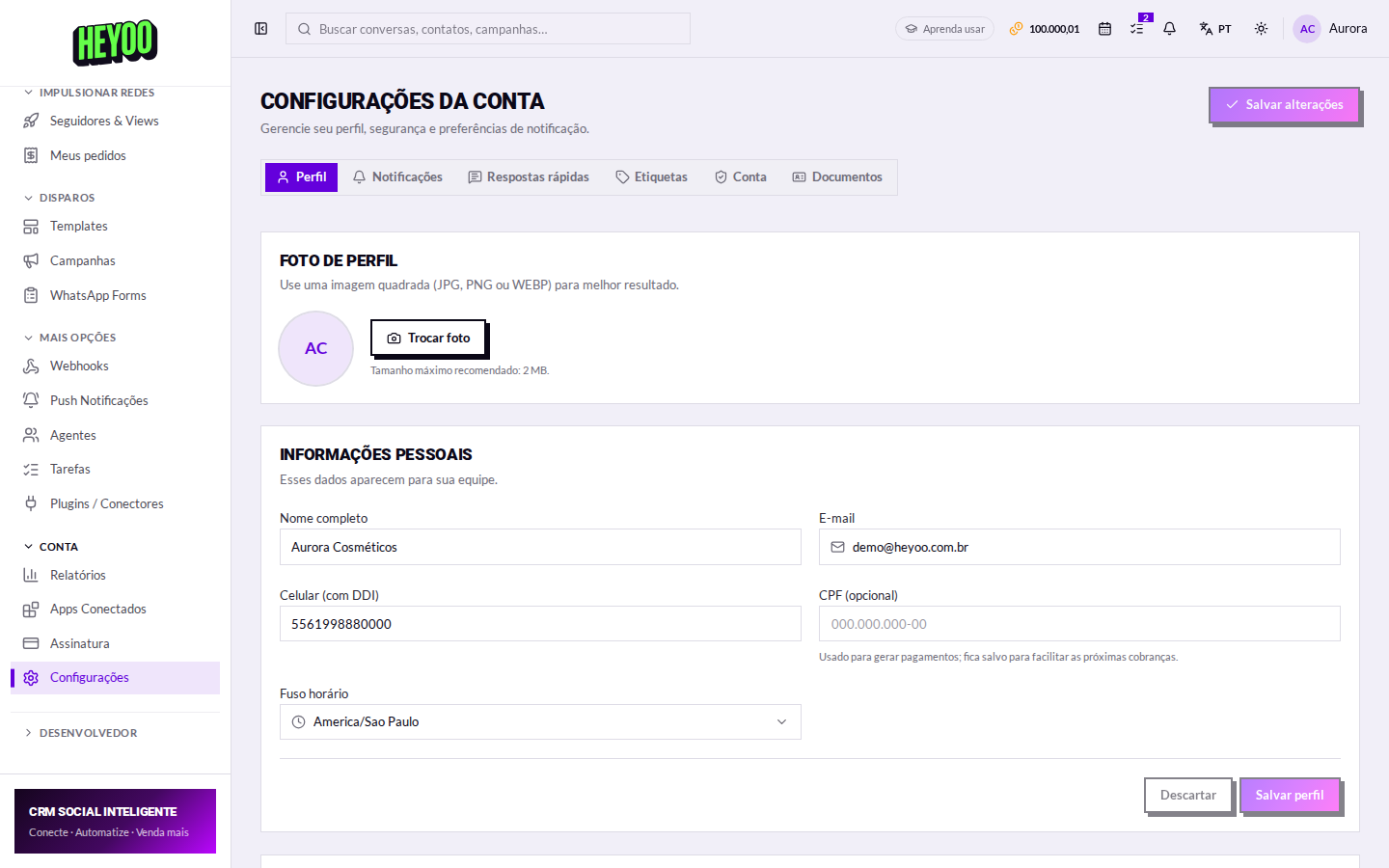
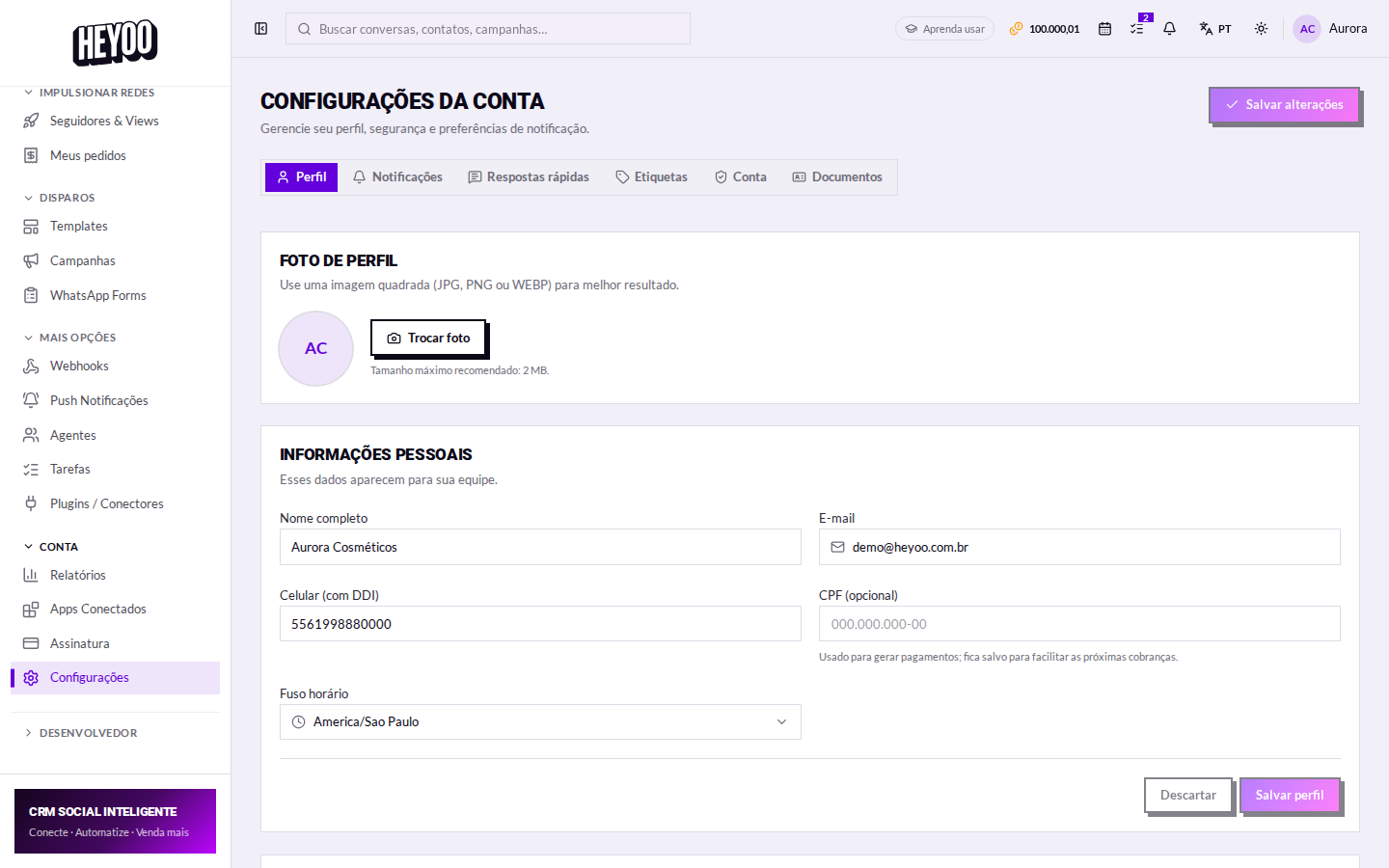
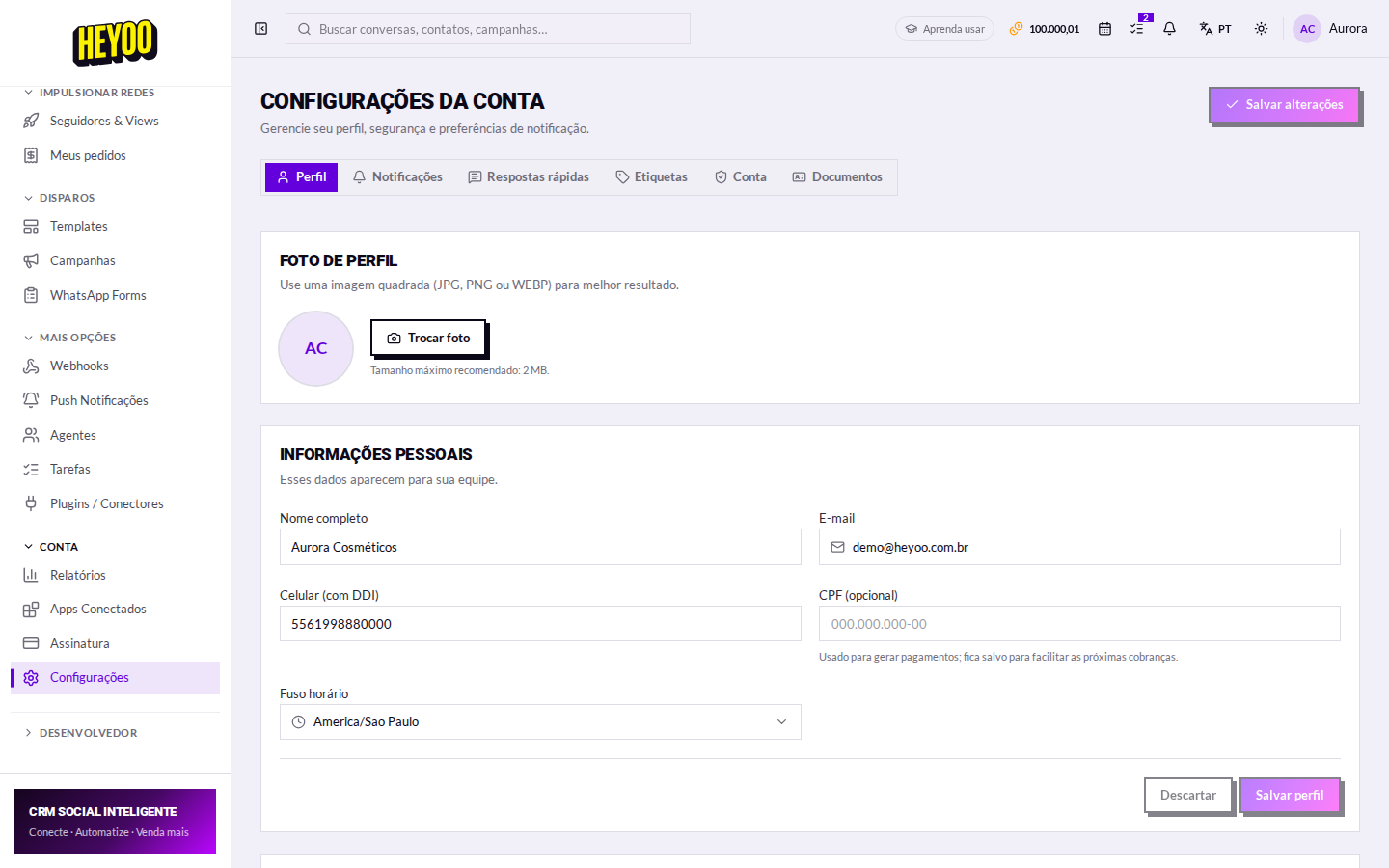
Account tab with the 2FA card
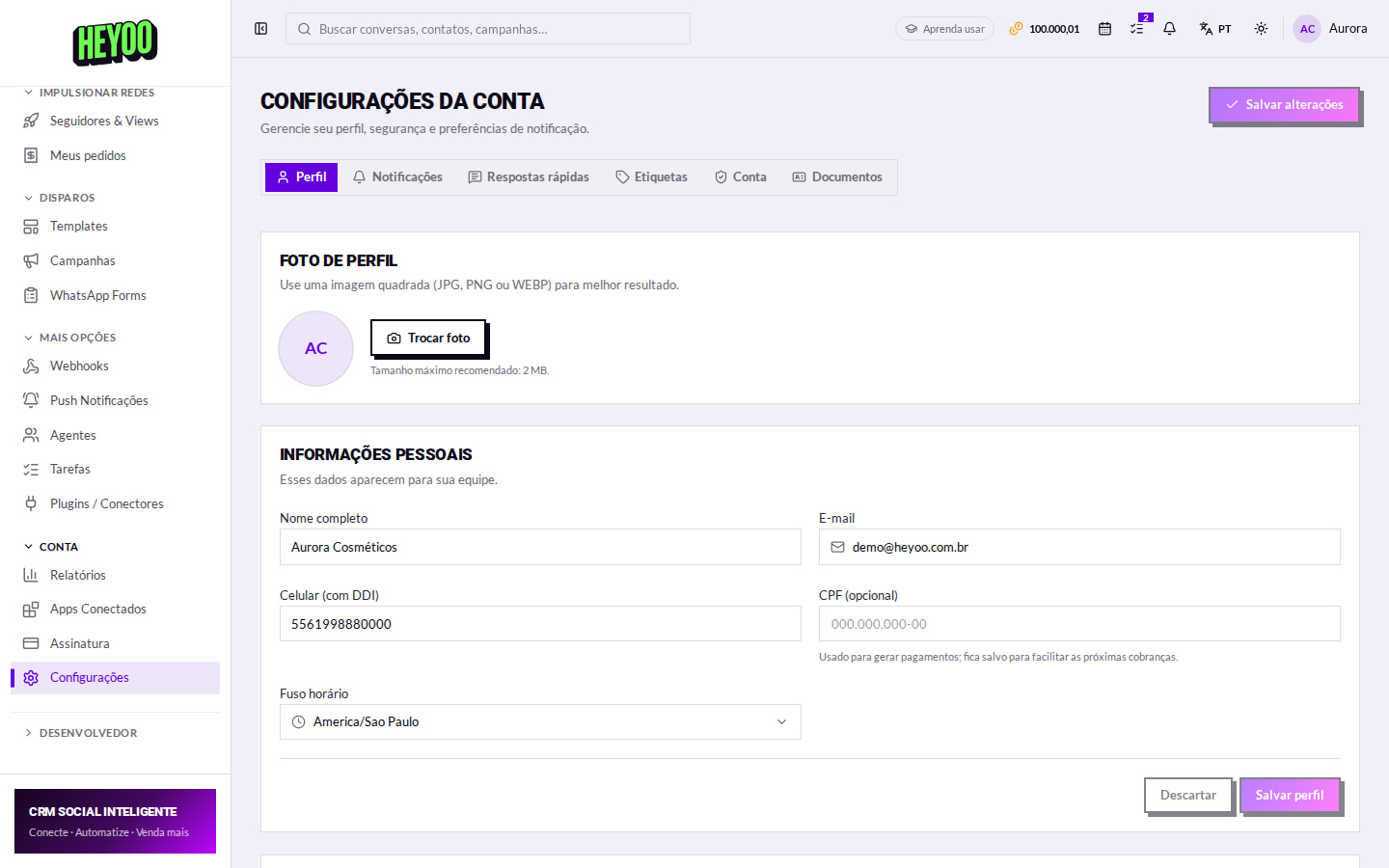
Two-step verification lives on the Account tab, in Settings.
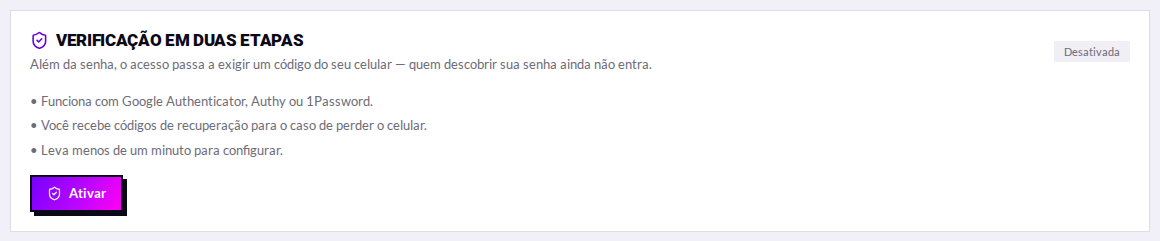
2FA card, disabled
While it is off, the card shows Disabled and an Enable button.

1. Open the wizard

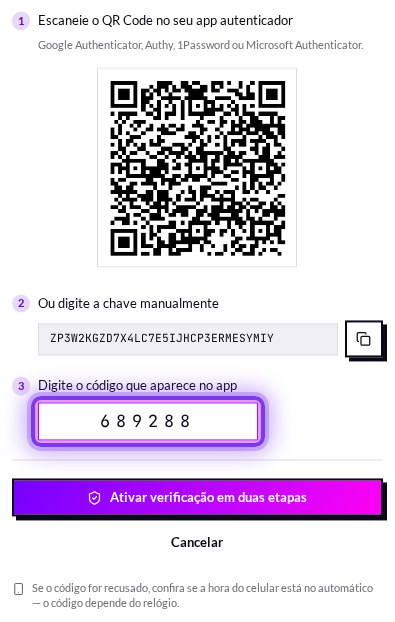
Click Enable. Heyoo opens a three-step wizard: scan the QR code, type the code and save the recovery codes.
2FA setup wizard
The wizard, with the QR code already generated.

2. Scan the QR code

2FA QR code
The QR code holds the secret that generates a fresh code every 30 seconds.
On your phone — outside Heyoo

The code is generated by an authenticator app. Any of these will do, all free:

  1. Google Authenticator, Microsoft Authenticator, Authy or 1Password.
  2. Install it, open it and tap add account › Scan QR code.
  3. Point the camera at the QR code on the Heyoo screen.
  4. The account appears in the app's list with a 6-digit code that changes on its own.

Back in Heyoo: in the step 3 field, type the code showing in the app at that moment.

3. If the camera will not work

Just below the QR code sits the manual key. In the app, choose enter setup key and type that sequence — the result is the same.

2FA manual key
The written key, with a copy button beside it.

4. Confirm

6-digit code field
Type the 6 digits and confirm with Enable two-step verification.
The code expiresEach code lasts about 30 seconds. If it rolls over while you are typing, use the next one — it is not a setup error.

5. Recovery codes

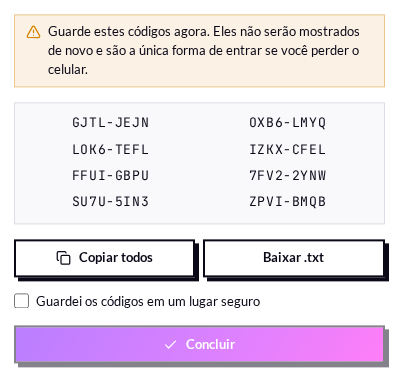
Once verification is on, Heyoo shows the recovery codes. They are there to get you in when your phone is not at hand.
Recovery codes screen
The codes appear only once, right after you enable it.
List of recovery codes
You can copy them all at once or download them as a file.
  • Each code works exactly once.
  • Keep them off the phone: printed, or in a password manager.
  • Copy all puts the list on the clipboard; Download .txt saves it to a file.
  • If you run out, you can generate a fresh batch from the same card.
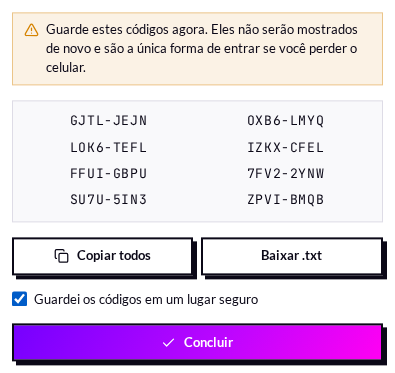
Confirmation that the codes were saved
The Finish button only unlocks after you tick that you saved the codes — that is deliberate.

Once it is on

2FA card, enabled
With verification enabled, the card shows the active state and the disable button.

From then on, every sign-in asks for the password and the app code. Nothing changes for your agents: 2FA applies to your administrator account.

Lost the phone and the codes?Without the authenticator and without the recovery codes, getting the account back means contacting support and proving it is yours. Save the codes the day you enable it — not later.
The API key requires 2FAGenerating an API key on the Account tab is only unlocked with two-step verification on. That is deliberate: the key gives programmatic access to your account.