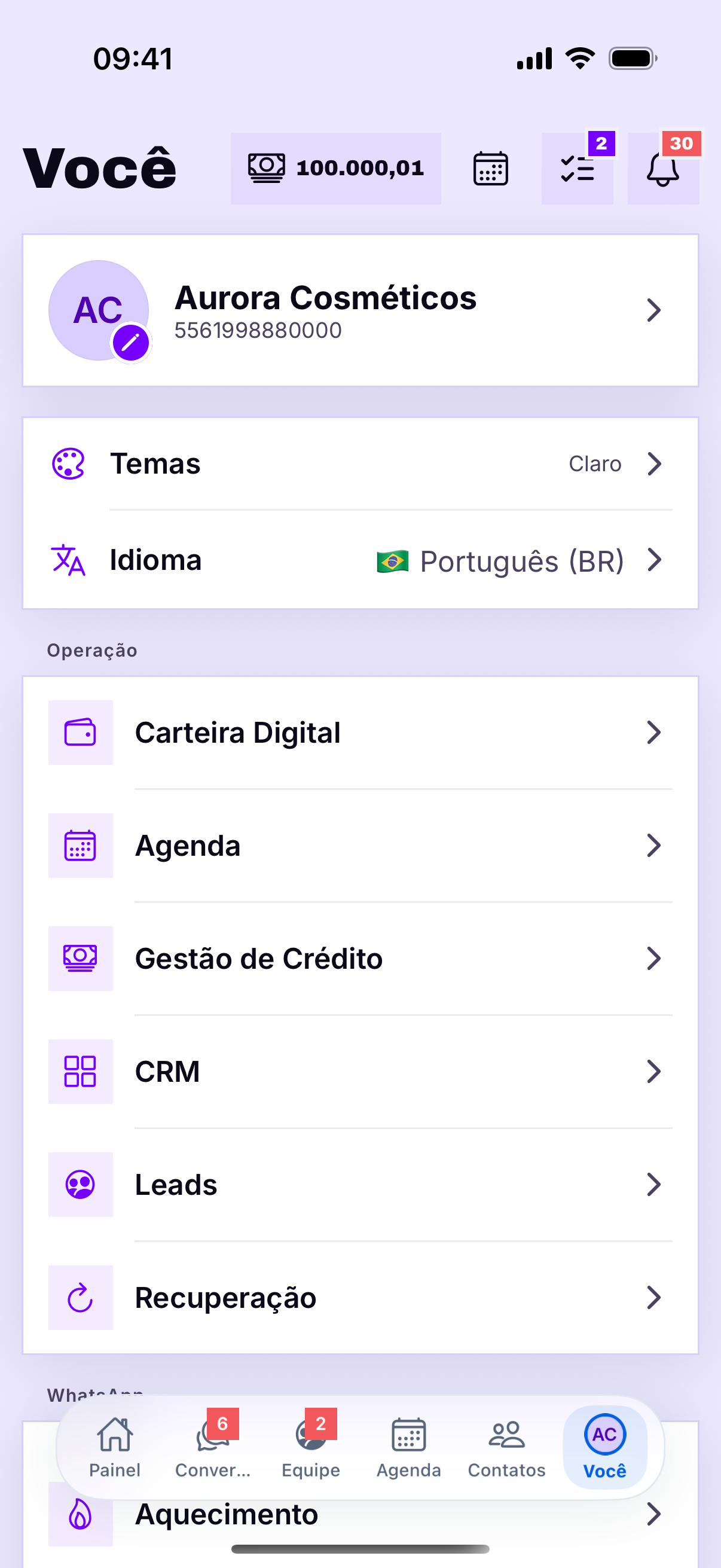
The You tab holds your profile and the door to the account. It is worth telling the two apart from the start: one is yours, the other is the company's.
What is yours
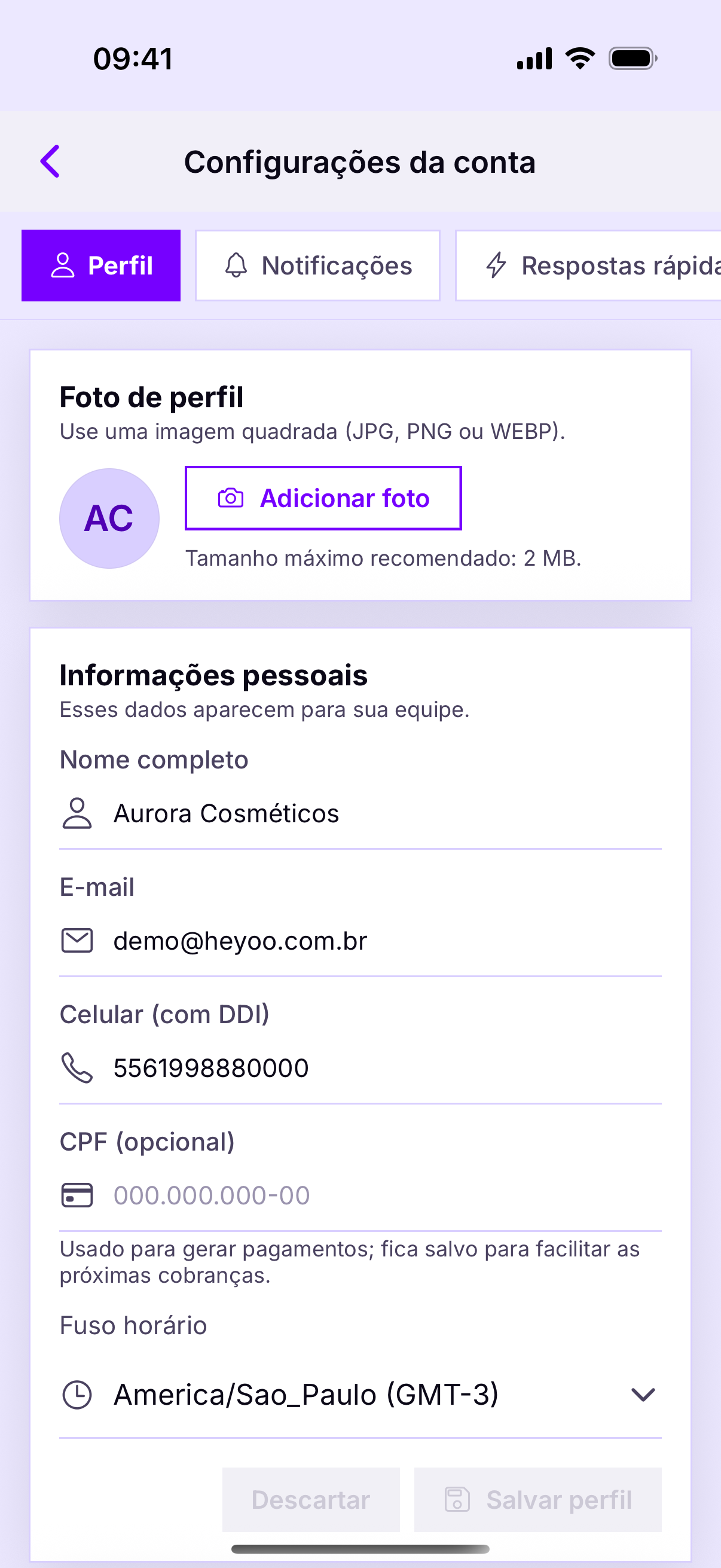
- Photo and name — how you appear to colleagues and in the reports.
- Email and phone — your sign-in and contact details.
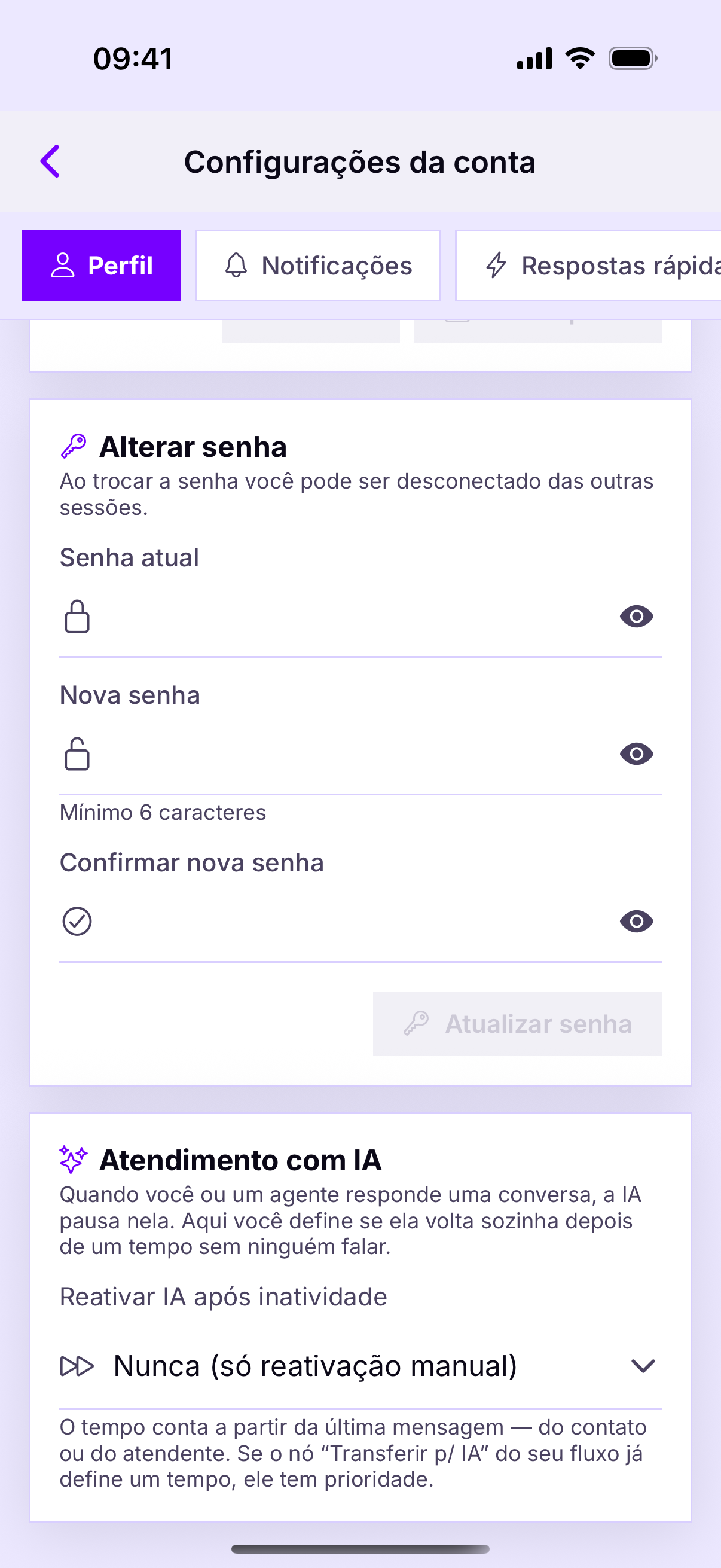
- Password — only you set it.
- Two-step verification — the lock on your account.
- Theme, language and notifications — your device's preferences.
What belongs to the account
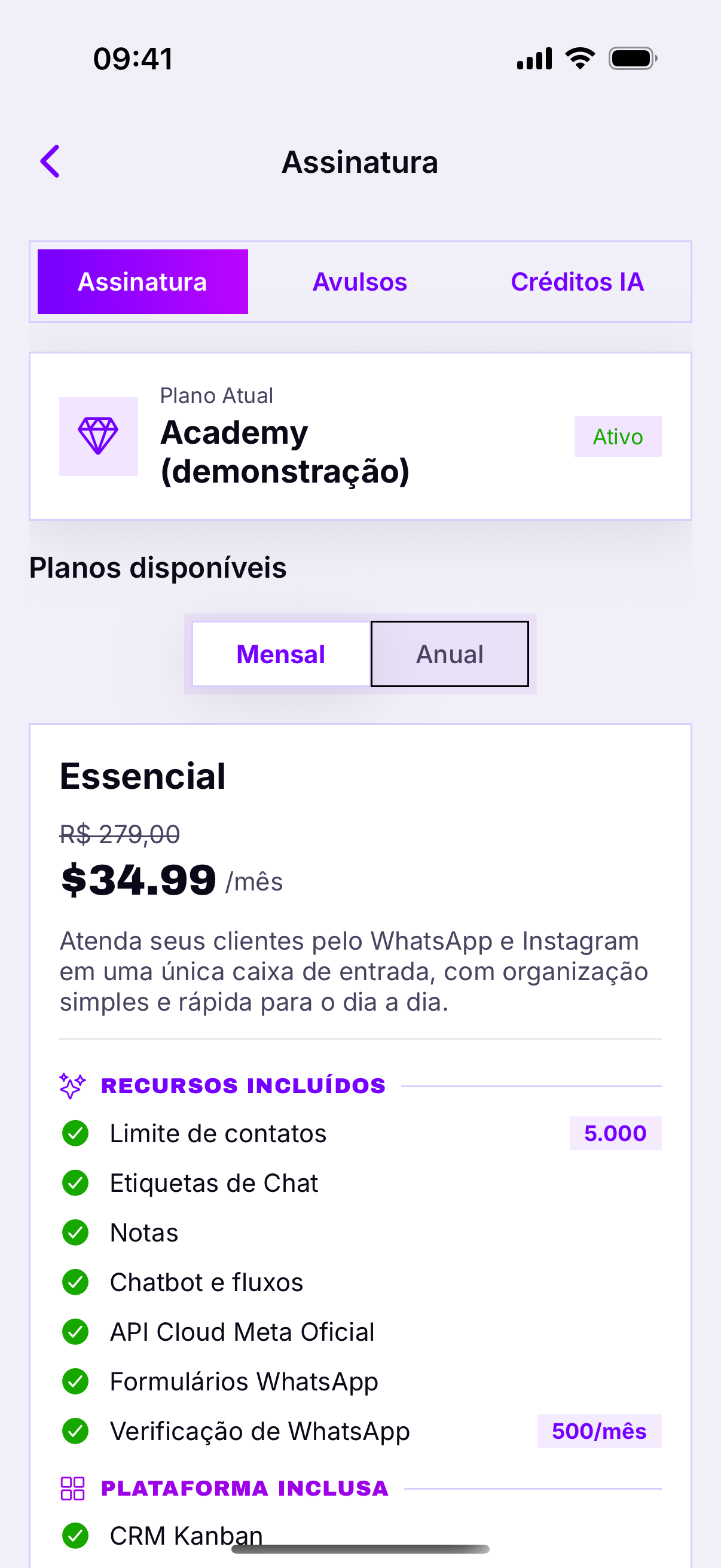
- Subscription and plan — what the company pays for.
- AI and verifier credits — a shared balance.
- Connected channels — the company's numbers and profiles.
- Labels and quick replies — the team's standards.
An agent sees, but does not changeWhoever signed in as an agent can see the balance and the plan, but does not subscribe or buy. That belongs to the account administrator — and the padlock on those screens is deliberate.
The photo
Use a real oneIt shows up in the You tab as its icon, in the internal chat and next to the conversations you have taken on. On a team of five, it is the fastest way for someone to know who has the customer.
Changing your password
- Open You › Account.
- Tap Password.
- Enter the new password and the confirmation.
- Save — it applies immediately.
Trocar a senha derruba as outras sessõesInclusive o computador. É por isso que trocar a senha é o primeiro passo quando você desconfia de acesso indevido — e não o último.
Including the computer. That is why changing the password is the first step when you suspect improper access — not the last.
Two-step verification
Guarde os códigos de recuperaçãoA password protects against guessing; it does not protect against a leak. Two-step verification uses a code that changes every thirty seconds, generated by an authenticator app on your phone.