Heyoo reaches you three ways: push on your phone and browser, email, and the bell inside the panel. The Notifications tab decides which alerts go into each.
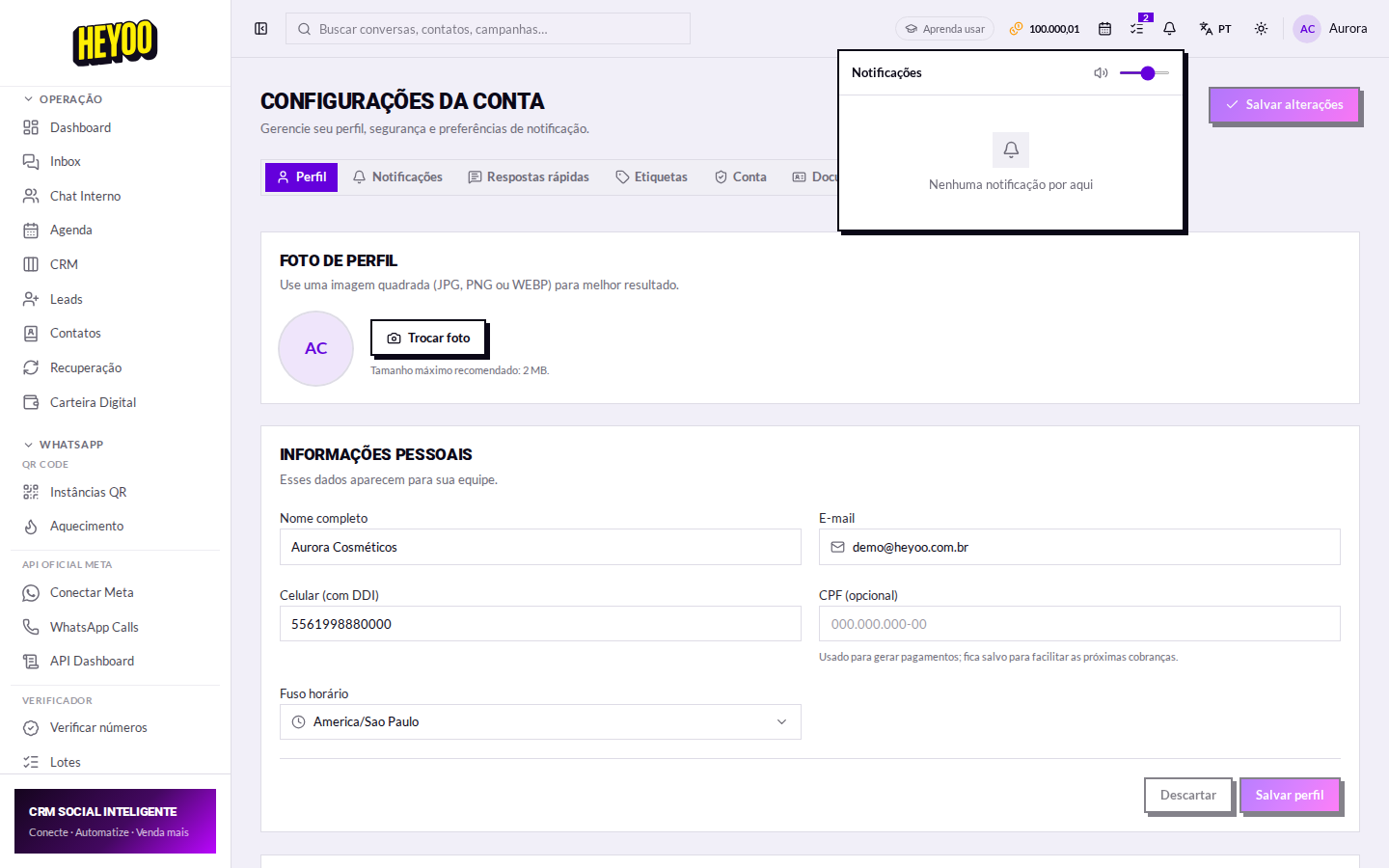
What you can switch on and off
| Aviso | Quando dispara |
|---|---|
| New message | A customer message arrived on any channel. |
| Conversation assigned | Someone assigned a conversation to you. |
| Sale / payment | Order paid, PIX received, charge confirmed. |
| Email digest | A round-up of the day in your inbox, without opening the panel. |
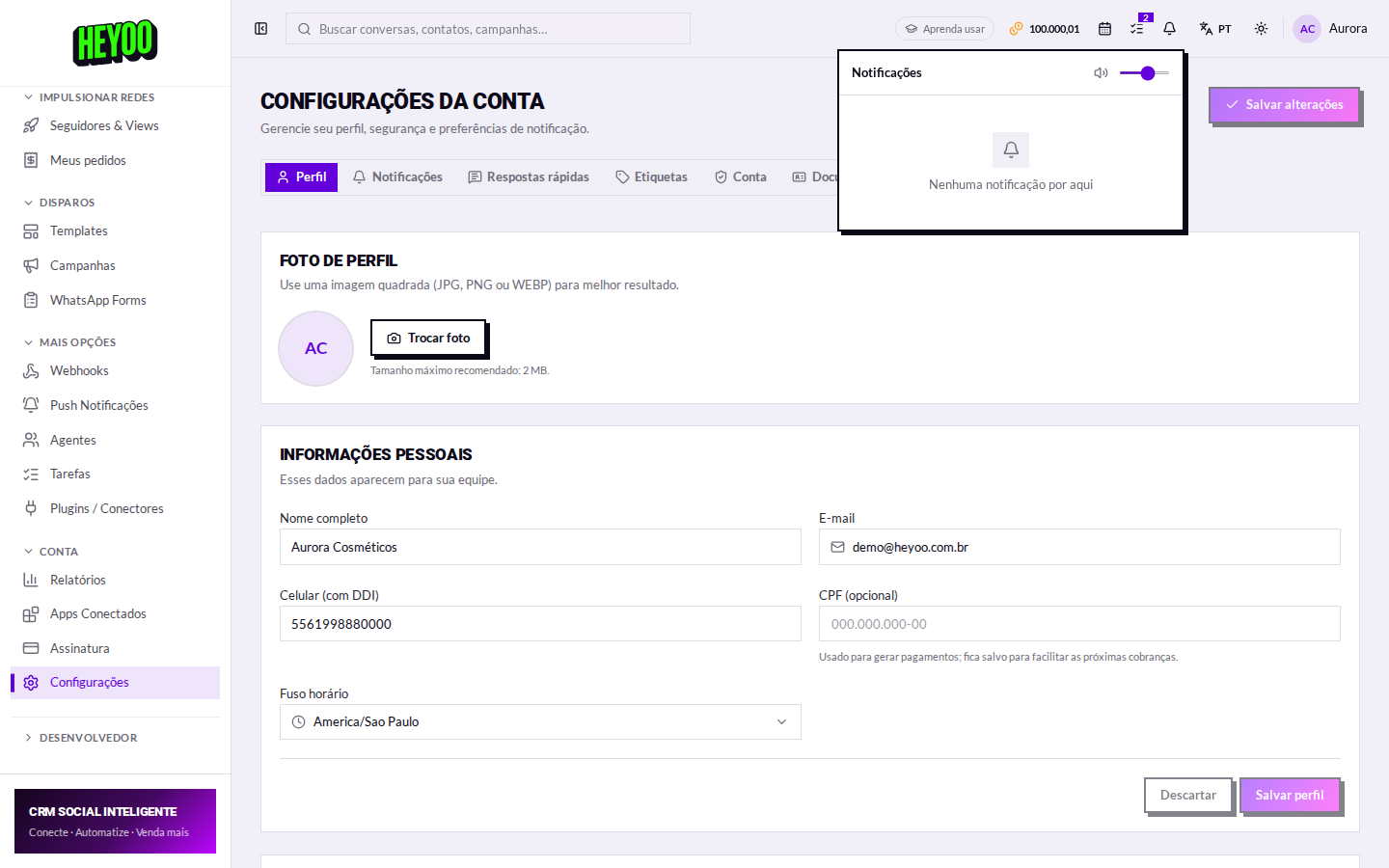
Push on your phoneTo get push on your phone, sign in to the Heyoo app with the same account and accept the notification permission when it asks. The alert arrives even with the app closed.
On your phone and browser — outside Heyoo
Push only arrives once the permission is accepted on the device:
- In the Heyoo app: sign in with the same account and tap Allow when it asks for notifications.
- In the browser: accept the notification prompt that appears at the top of the window.
- If you declined before: on the phone, go to Settings › Notifications › Heyoo and switch it on; in the browser, click the padlock in the address bar and allow notifications.
Back in Heyoo: the switches on this screen start to matter — without the device permission, none of them work.
The panel's bell
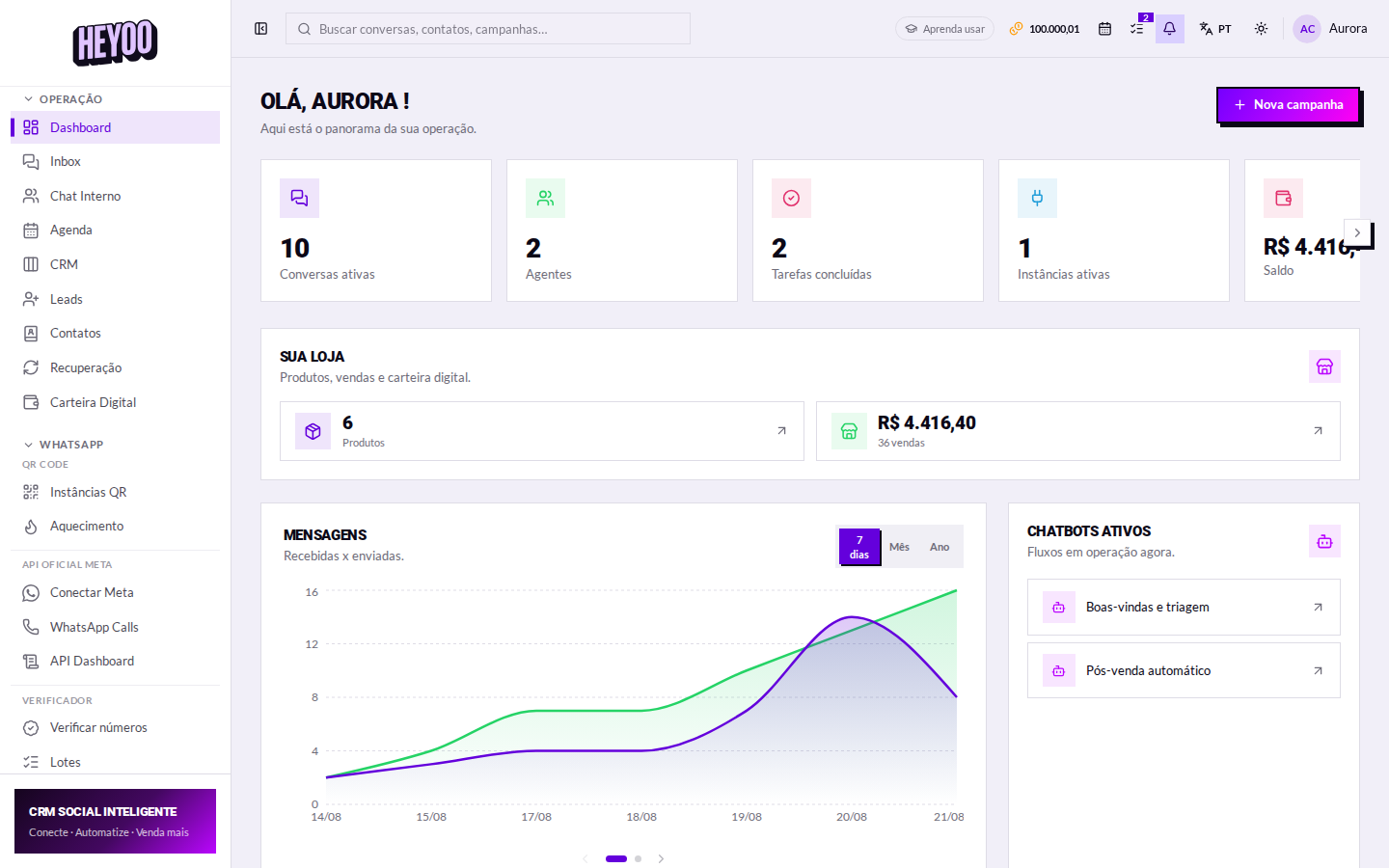
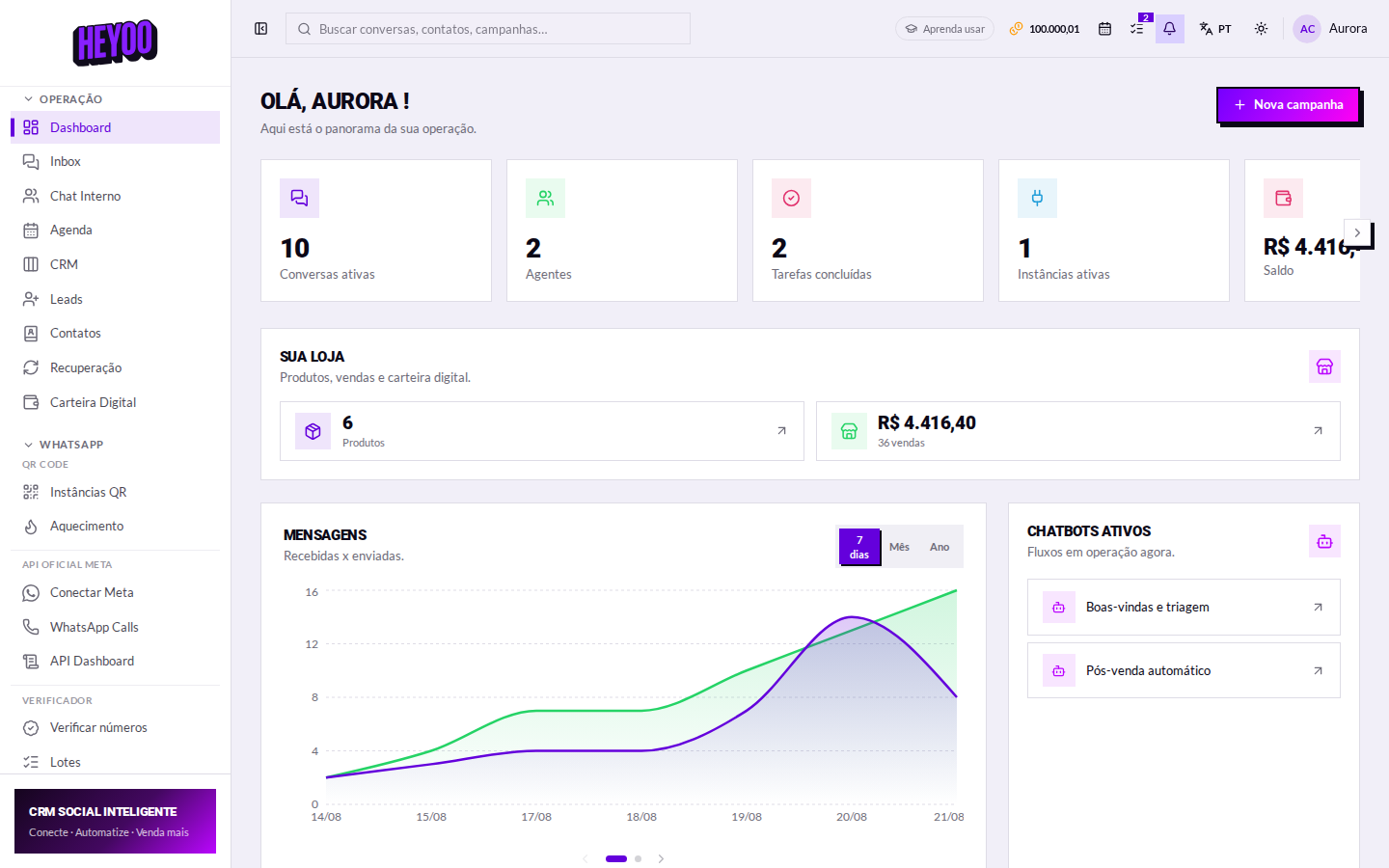
The bell gathers everything in one place and does not depend on the switches above: new message, payment received, a WhatsApp session that dropped, a credits-running-low warning.
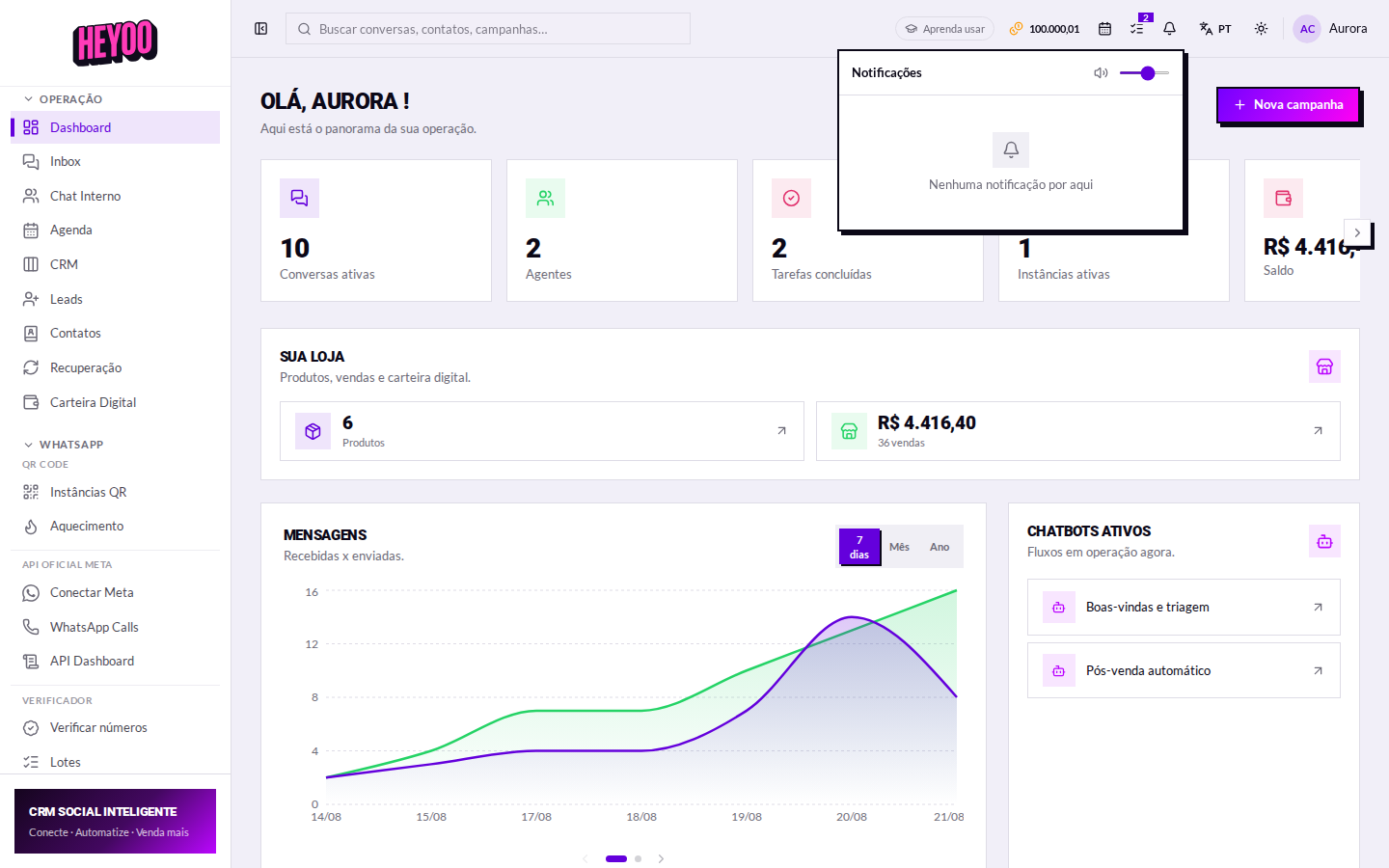
A dropped session is a critical alertWhen a WhatsApp number disconnects, the alert shows up here — and while it stands, no message from that number reaches the inbox. Do not let that one go cold.